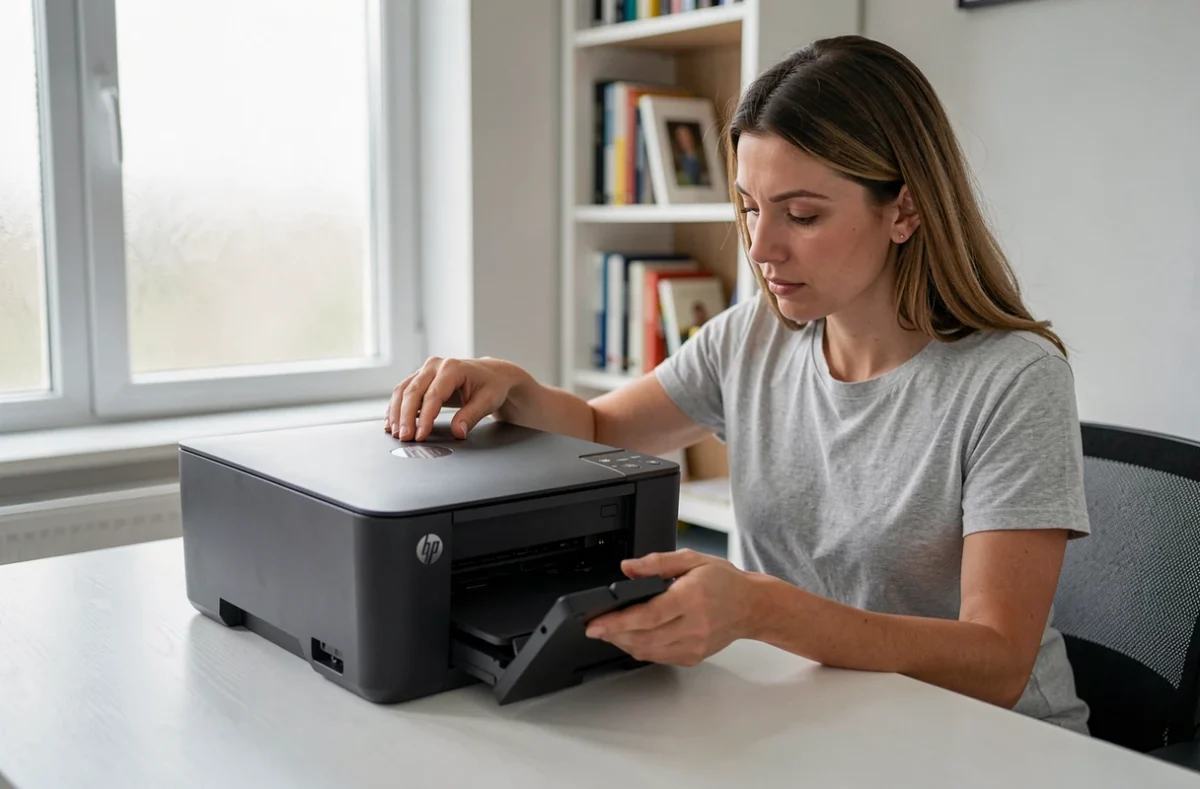
Streaks in your photos, half-erased text, fading colors: on the HP Envy 5030, these symptoms almost always point to the ink nozzles. What makes this model different is that the printhead is built directly into each HP 304 or 304XL cartridge. Cleaning the printheads therefore means working on the cartridge itself, which changes the troubleshooting approach compared with printers that have a separate printhead.
Printhead built into the HP 304 cartridge: what this means for troubleshooting
On many large-format or professional inkjet printers, the printhead is attached to the carriage. You can clean it or replace it if it fails, independently of the cartridges. That’s not the case with the HP Envy 5030.
Each HP 304 cartridge (black or tri-color) has its own nozzles. When ink dries in these tiny openings, the entire cartridge becomes the problem. If cleaning doesn’t work after two or three attempts, replacing the cartridge also replaces the printhead. This detail shapes the entire troubleshooting strategy: there’s no point repeating a cleaning cycle that uses up ink without fixing the problem.
Before you try anything, you need to find out whether the problem really is the nozzles or another setting. That’s what the print quality report is for, as explained below. If you’d prefer to follow a complete procedure with screenshots, this detailed guide explains how to clean the HP Envy 5030 printheads step by step.
HP Envy 5030 print quality report: check the results before taking action
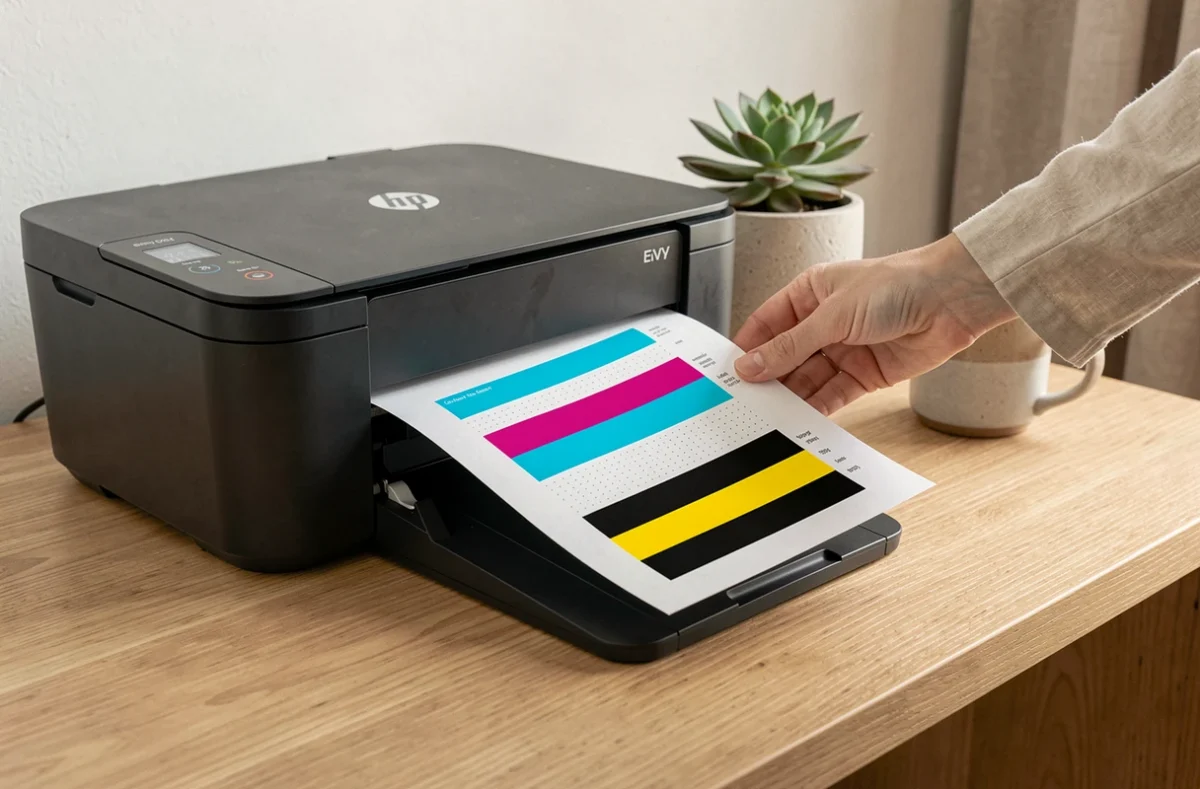
Have you noticed that some documents print correctly while others have defects? The diagnostic page helps you pinpoint the cause. It prints solid blocks of color and line patterns that reveal the actual condition of the nozzles.
To print it on the HP Envy 5030, open the HP Smart app (or the HP software on your computer), then go to the print quality tools. The report prints in a few seconds.
Missing lines in the solid color blocks point to clogged nozzles or a cartridge that’s nearing the end of its life. However, if the report looks fine but your documents are still blurry, the problem lies elsewhere: check the selected paper type, the resolution chosen in the settings, or the condition of the source file.
This distinction helps you avoid wasting ink on unnecessary cleaning cycles. It also shows whether the black or tri-color cartridge is causing the problem, which is useful when weighing the cost of a replacement.
Automatic nozzle cleaning on the HP Envy 5030: steps and limitations
Automatic cleaning is the first thing to try. It pushes ink through the nozzles to dislodge dried residue. The process takes a few minutes and requires no disassembly.
Run the cycle from HP Smart
Open HP Smart, select your printer, then go to the advanced settings or print quality tools. Select “Clean Printheads” to start the cycle. When it’s finished, print the quality report again to compare the results.
When to stop
HP recommends running no more than two or three cleaning cycles in a row. Each cycle uses a significant amount of ink. If the report shows no improvement after the second or third attempt, running another cleaning cycle won’t help.
At this point, you have two options: clean the cartridge contacts by hand or replace the cartridge.
Manually cleaning the HP 304 cartridge contacts
If automatic cleaning doesn’t work, the problem may be with the electrical contacts between the cartridge and the carriage, not just the nozzles. Dust or dried ink on these contacts can interfere with communication.
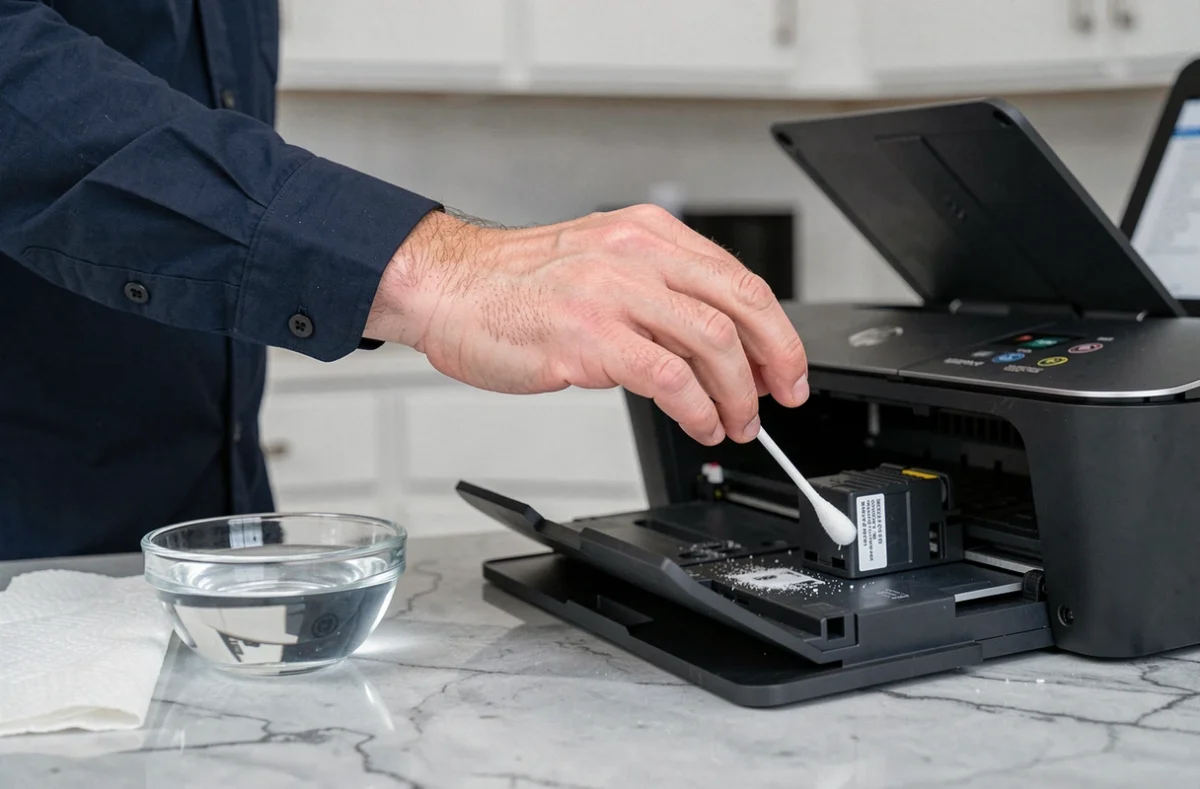
- Remove the cartridge from its slot and locate the strip of copper-colored contacts on the opposite side from the nozzles.
- Use a lint-free cloth lightly dampened with distilled water. Wipe the cartridge’s copper-colored contacts, then clean the contacts on the carriage inside the printer.
- Let everything dry for a few minutes before reinstalling the cartridge. Never touch the nozzle area with your fingers.
Do not use alcohol or household cleaners on the contacts: these solvents can damage the coating. Distilled water is enough to dissolve dried ink without leaving mineral deposits.
After reinstalling the cartridge, print another quality report. If lines are still missing, the problem is with the nozzles inside the cartridge itself.
Keep troubleshooting or replace the cartridge: how to decide
This is the question most guides avoid. On the HP Envy 5030, the answer depends on two specific factors: the quality report results after cleaning and how much ink is left in the cartridge.
If lines are still missing from the report after two automatic cleaning cycles and manually cleaning the contacts, the nozzles are probably irreversibly clogged. Since the printhead is built into the HP 304 cartridge, no further cleaning will restore it.
Now weigh the cost: if the cartridge is nearly empty, replacing it solves the printhead problem and replenishes the ink at the same time. If it still has plenty of ink, replacing it does mean wasting some, but further cleaning cycles will use up the remaining ink without guaranteeing a fix.
- Cartridge nearly empty and poor report results: replace it right away.
- Cartridge still full but poor report results after three cleaning cycles: replace it anyway, since each additional cycle uses ink without clearing the nozzles.
- Report looks fine but the document is blurry: the printhead isn’t the problem. Check the paper, resolution, and source file before buying anything.
Preventing clogged nozzles in an HP inkjet printer
The main cause of clogs is leaving the printer unused for too long. When the printer stays off for several weeks, residual ink in the nozzles dries and forms a blockage.
Printing one page a week, even a simple text document, keeps the ink flowing and prevents it from drying out. If you’re going on vacation or won’t be printing for a while, print a small job before and after the period of inactivity.
Also keep the printer somewhere with a stable temperature. Heat speeds up ink drying, while cold can thicken some ink formulations. A typical office room is perfectly suitable.
Printhead alignment, available in the same menus as cleaning, won’t clear clogged nozzles, but it can reduce blurriness and color misalignment. Alignment and cleaning address different symptoms: run alignment when text looks out of position, and cleaning when lines are missing.
Minimal maintenance is all the HP Envy 5030 needs. The real pitfall is running too many cleaning cycles. Two cycles with no improvement, a quick wipe of the contacts, then a cartridge replacement if nothing changes: this sequence covers almost every situation.