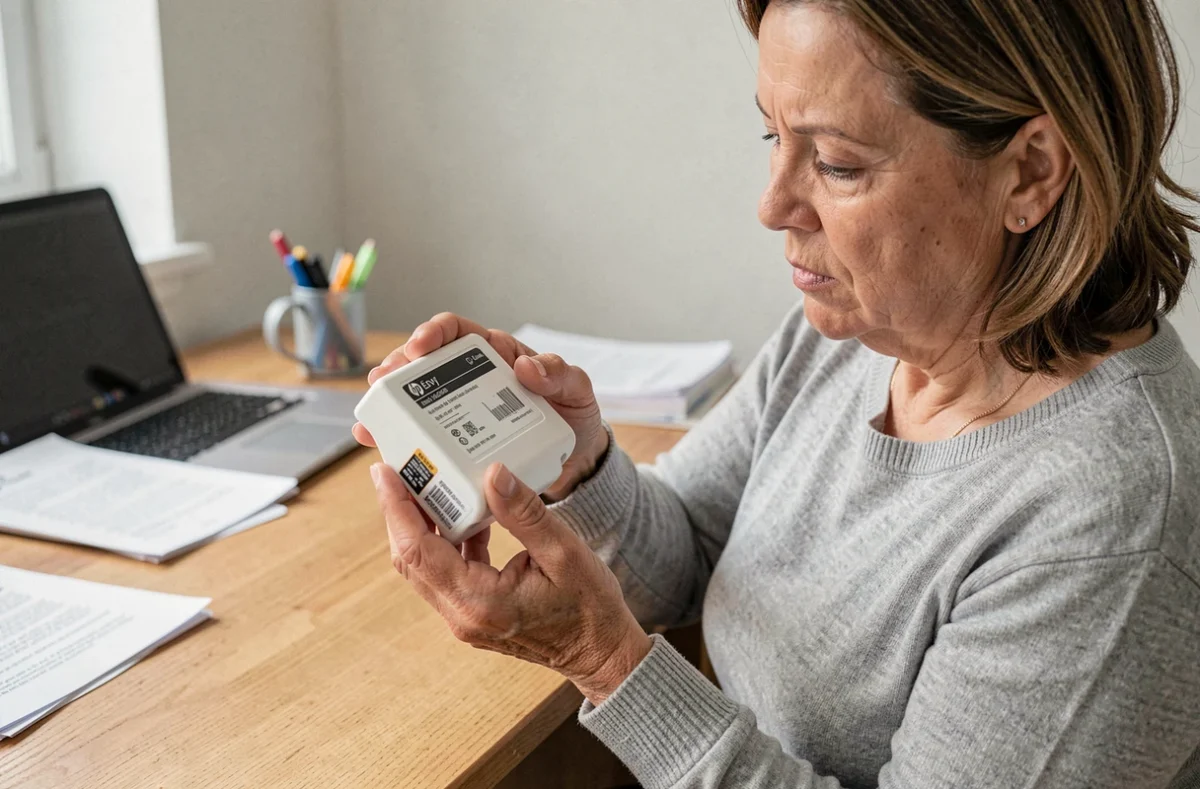
On the HP Envy 5030, the print nozzles are built directly into the HP 304 and 304XL cartridges. This technical detail changes everything: there is no removable printhead to take apart or soak separately. When print quality deteriorates (white lines, missing colors, faded text), cleaning therefore targets the cartridge nozzles themselves, and the decision to replace rather than clean comes up sooner than with other models.
HP Envy 5030 test page: identify the cause before cleaning
Before starting a cleaning cycle, printing a diagnostic page can save time. On the printer’s control panel, press and hold the color copy button for a few seconds to generate a print quality report.
If the page shows streaks, missing segments, or misaligned colors, the problem is indeed with the nozzles or cartridge. If it prints correctly, the issue is more likely software-related: document settings, an outdated driver, or draft mode enabled by default in the application.
This distinction helps avoid wasting ink, since each cleaning cycle uses ink from the cartridge. Running three cleaning cycles blindly to address a software problem empties the cartridge without fixing anything. To learn more about how to clean HP printheads on this specific model, the test page is the most reliable place to start.
Software nozzle cleaning on the HP Envy 5030: steps and limitations
Automatic cleaning is the least invasive method. It sends a controlled flow of ink through the nozzles to dissolve dried residue.
From Windows
Open Control Panel, then Devices and Printers. Right-click the HP Envy 5030, select Printing Preferences, then the Services tab. The “Clean Printheads” option starts the first cycle.
From HP Smart
The HP Smart app (available on Windows and macOS) offers the same function in the Print Quality section. The free HP Print and Scan Doctor utility provides guided diagnostics that automatically detect issues and recommend the appropriate cleaning.
After each cycle, print a new test page and compare it with the previous one. If quality improves but is still imperfect, a second cycle may be worthwhile. After two consecutive cycles with no visible improvement, there is no benefit to continuing software cleaning—it will simply use up the cartridge faster.
Aligning HP 304 cartridges: when cleaning isn’t enough
Alignment corrects a different issue from clogging. It recalibrates the exact position of the ink jets relative to the paper.
Alignment issues have different symptoms from a clogged nozzle:
- Text appears slightly doubled or shifted, like a shadow behind each character
- Colors do not line up properly, creating visible fringes along the edges of images
- Straight lines look unusually jagged, even at the highest print quality
If these defects appear after replacing a cartridge, alignment resolves the problem in most cases. Start the procedure from the Services tab in Printing Preferences or directly through HP Smart. The printer then prints a calibration page and automatically adjusts the alignment.
Alignment is not a substitute for cleaning when entire colors are missing or white bands run across the page. These two procedures address different causes.
Cleaning hasn’t worked on the HP Envy 5030: replace the cartridge or keep trying?
The HP Envy 5030’s design makes this a more straightforward decision than it is with printers that have removable printheads. Since the nozzles are part of the HP 304 cartridge, a cartridge whose nozzles remain clogged after two software cleaning cycles is probably at the end of its life.
Several signs can help you decide:
- The test page still shows the same missing segments after two cleaning cycles spaced a few hours apart
- Only one color (black or tri-color) is affected, while the other cartridge prints normally
- The cartridge has been installed for several months, even if the displayed ink level still looks acceptable
- Recurring alerts in HP Smart or the driver report a cartridge problem
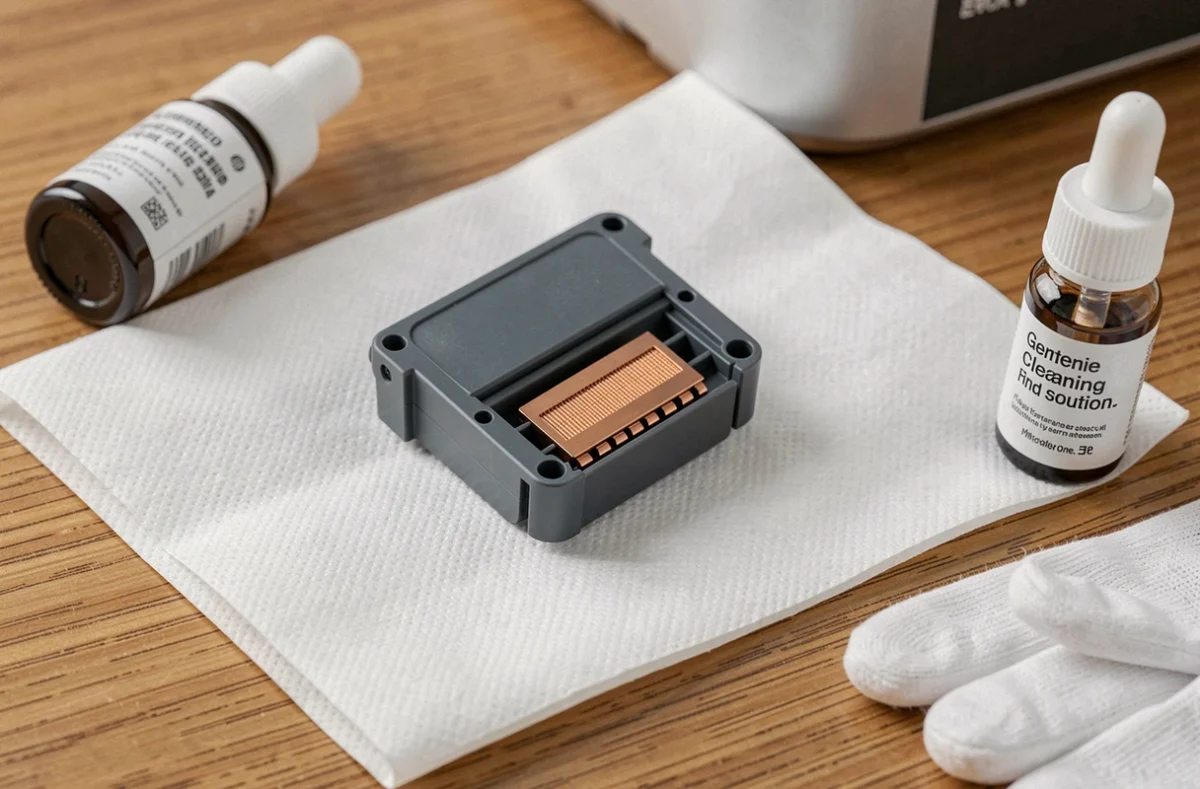
In these cases, replacing the faulty cartridge restores print quality faster than risky manual cleaning. Soaking or wiping the contacts on an HP 304 cartridge may work temporarily, but the improvement is often short-lived, and there is a real risk of damaging the electrical contacts or nozzles.
The displayed ink level trap
With refilled or remanufactured cartridges, the ink level indicator may show “full” even though some of the ink inside has dried. This discrepancy between the displayed level and the actual condition of the ink explains why some cartridges appear full but produce poor-quality prints. The gauge measures a software counter, not the physical amount of ink remaining.
If the cartridge was stored outside the printer without its protective clip, the ink around the nozzles may have dried within a few weeks. No software cleaning can rehydrate ink that has solidified in the microchannels of an HP 304 cartridge.
Replacing the cartridge on the HP Envy 5030 is the logical final step when automatic cleaning and alignment fail. A methodical diagnosis (test page, no more than two cleaning cycles, and an alignment check) helps you reach this conclusion without wasting ink or time on risky trial-and-error procedures.